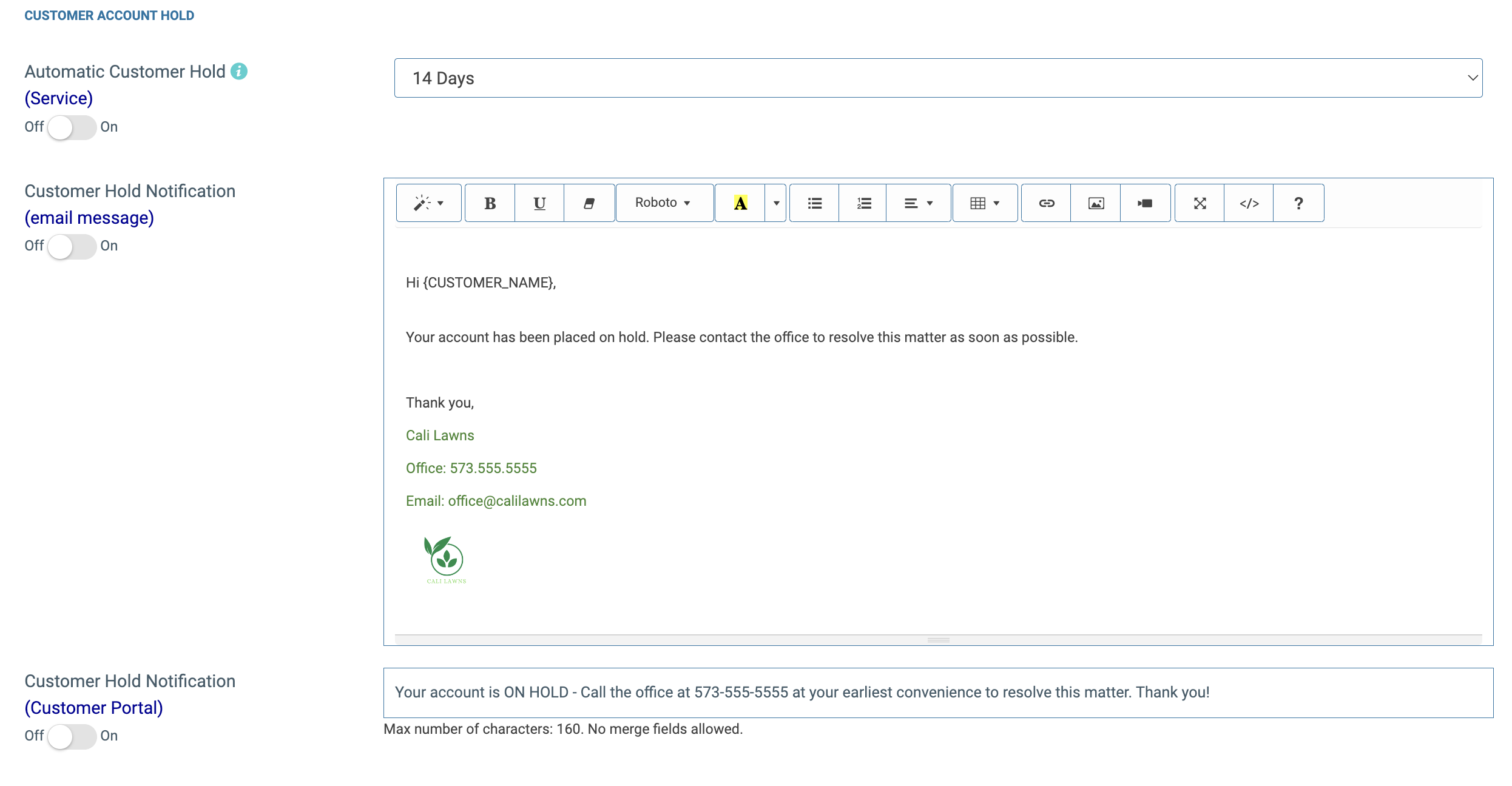
Within Spraye, you can place a customer account on hold automatically, or manually. The settings in this section give you the ability to manage the hold feature.
You have the option to trigger the automatic account hold at the following timeframes which are based on the invoice first sent date: 14 days, 30 days, 45 days, 60 days, 90 days and 180 days.
You may also choose to send an automated email and/or customer portal notification regarding "Hold" status to your customers. For more information, see: How To Place A Customer Account on Hold.
HOW TO ENABLE AUTOMATED CUSTOMER HOLD
1. Toggle "On" the Automatic Customer Hold feature (the first toggle in the screenshot above)
2. Toggle "On" the customer hold notification that lets the customer know that their account has been placed on hold. Be sure to modify the email template to say what you would like for this notification to say (you can use any dynamic fields in this email).
3. Toggle on the "Customer Hold Notification" in the Customer Portal if you would like for the system to automatically show a message in the customer portal that their account is on hold.
NOTE: If you have the automated customer hold feature on, then if you manually change a customer to the "hold" status, the system will still run a check daily to see if each account is past due by the number of days you set or not, and if they are not past due by this number of days it will automatically change them back to active and remove the hold status. We recommend changing a customer's status to "Inactive" instead of using the hold feature if you have Automated Customer Hold turned on to prevent this issue.
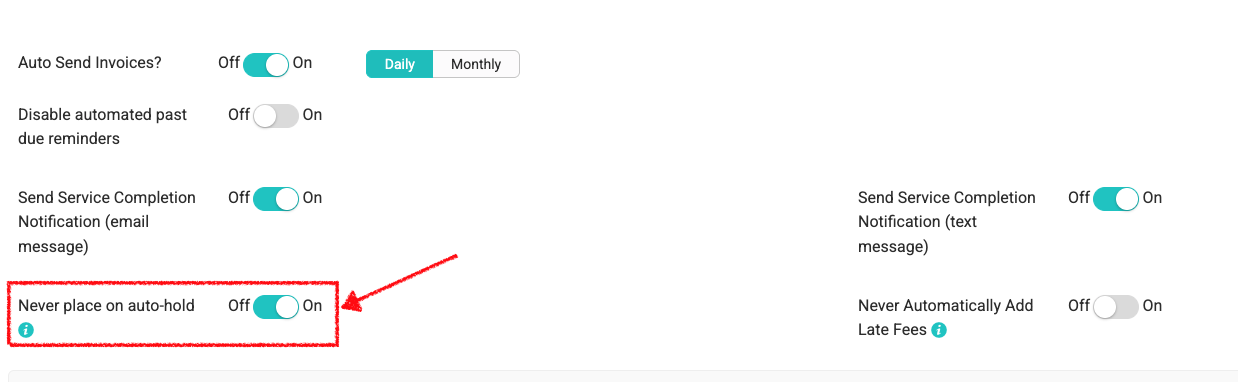
The Account Auto-Hold feature can be overridden at the customer level by turning on the Never place on auto-hold option. Customers with this option enabled will never be placed on auto-hold.