
1. Enabling Time Tracking
Before your team can start logging hours, an administrator must enable the feature in your global settings.
Hover over your name in the upper right corner and select Settings
Locate the Technician Settings section
Toggle the switch for Enable Employee Time Tracking.
Note: When this is enabled, all users will have the ability to clock in and out while logged into the system.
2. How to Clock In and Out
Hover over your Profile Name in the top right corner.
Click Clock In to start your shift.
Once you are clocked in, the button will automatically change to Clock Out for when you finish.
For Technicians (Mobile/Field View)
A dedicated button is located at the top of the page for easy access.
Simply tap Clock In when arriving or Clock Out when finishing your day.
3. Reviewing and Exporting Time Reports
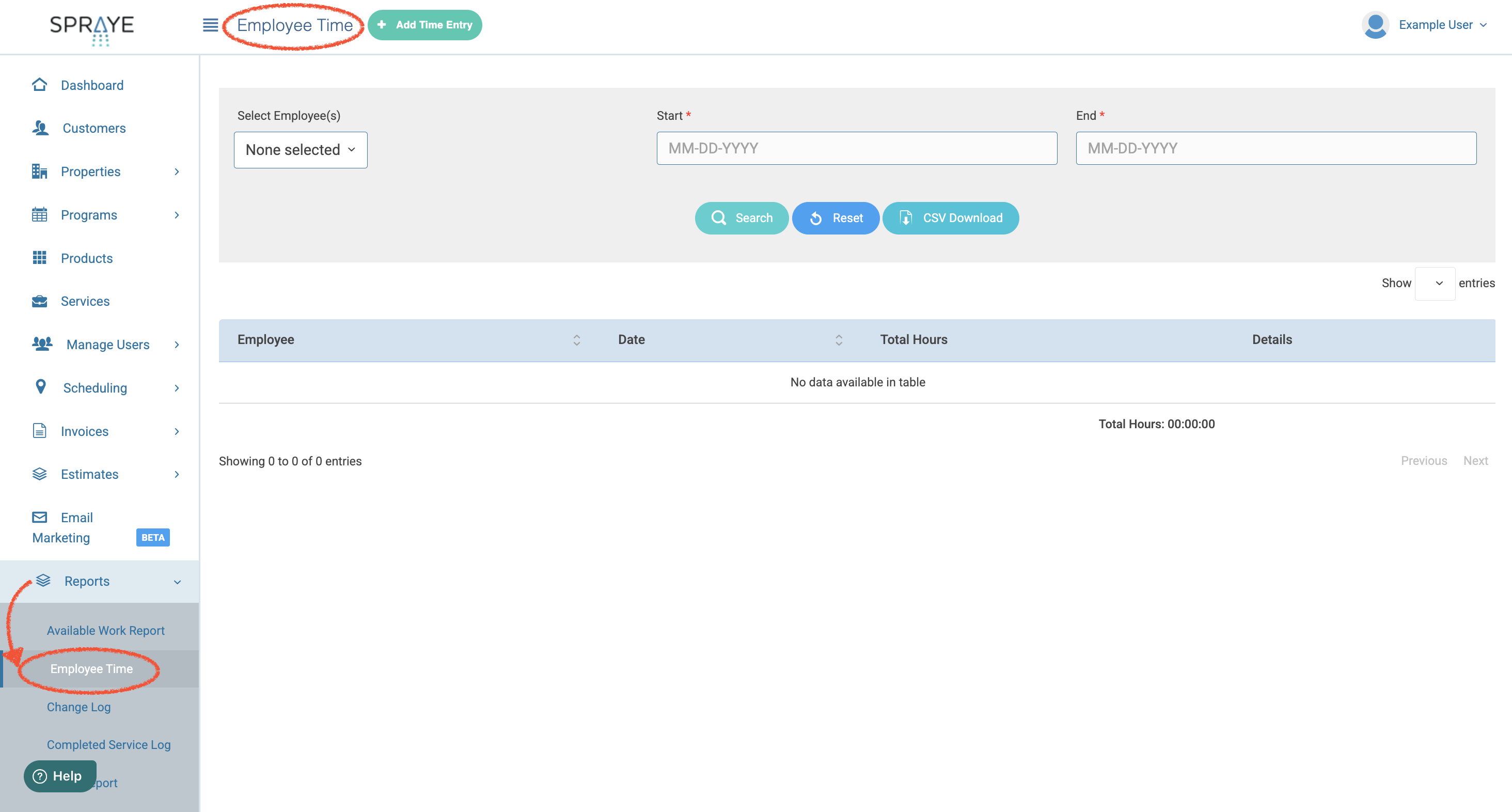
To view your team’s hours, navigate to Reports > Employee Time. You can filter these reports by Date Range and Specific Employee.
Editing and Exporting
Need to fix a mistake? In the Detailed view, you can edit the date or time of any log. The system will automatically recalculate the total time.
Need the data in Excel? Both the Detailed and Summary views include a Download to CSV option.
Pro Tip: Total time is displayed in
hh:mm:ssformat to ensure your payroll is accurate down to the second.