
1. Enabling Time Tracking
Before your team can start logging hours, an administrator must enable the feature in your global settings.
Hover over your name in the upper right corner and select Settings
Locate the Technician Settings section
Toggle the switch for Enable Employee Time Tracking.
Note: When this is enabled, all users will have the ability to clock in and out while logged into the system.
2. How to Clock In and Out
Hover over your Profile Name in the top right corner.
Click Clock In to start your shift.
Once you are clocked in, the button will automatically change to Clock Out for when you finish.
For Technicians (Mobile/Field View)
A dedicated button is located at the top of the page for easy access.
Simply tap Clock In when arriving or Clock Out when finishing your day.
3. Reviewing and Exporting Time Reports
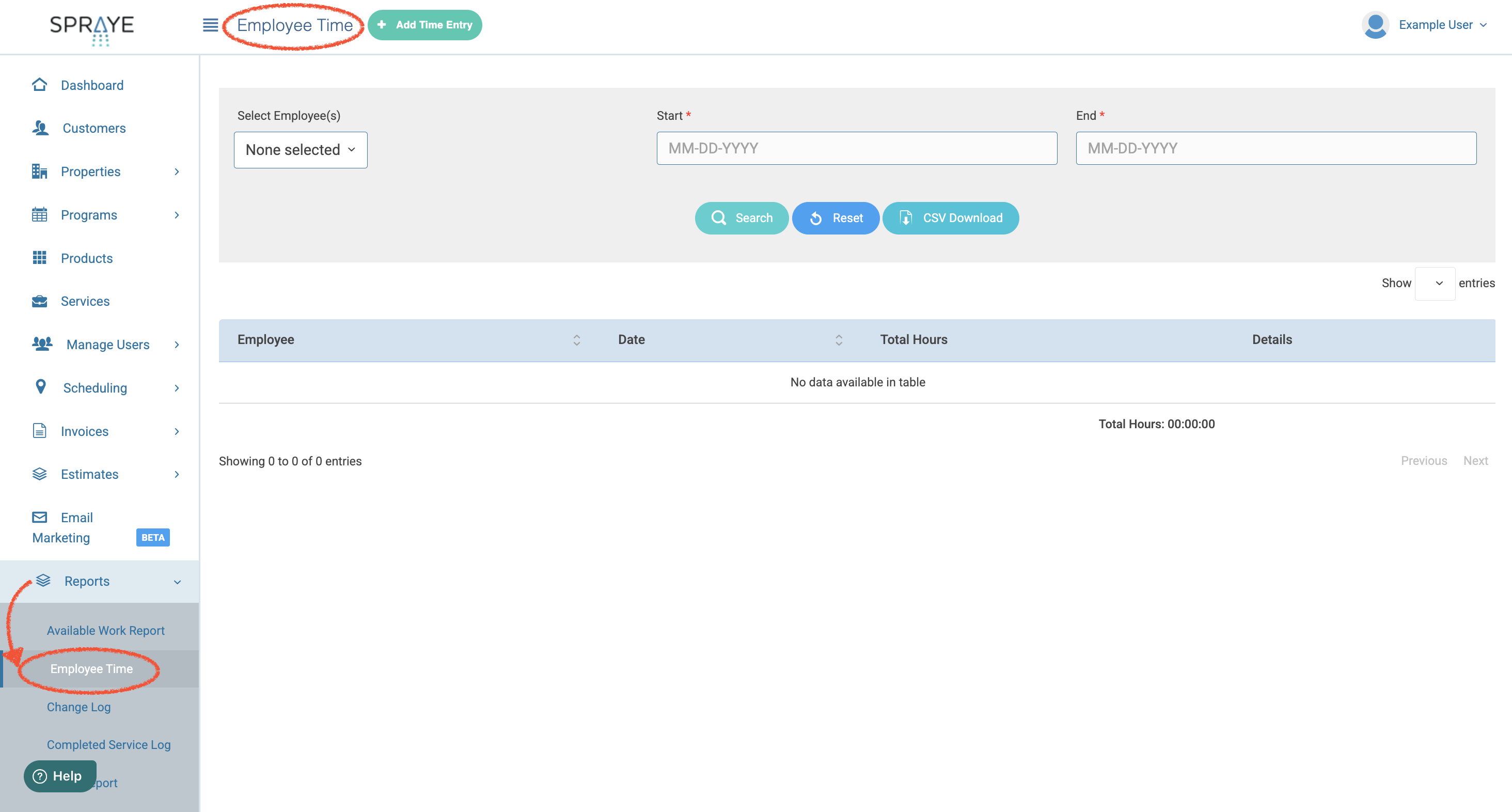
To view your team’s hours, navigate to Reports > Employee Time. You can filter these reports by Date Range and Specific Employee.
Editing and Exporting
Need to fix a mistake? Click Details next to an employee, then Edit Details on any entry to change its date or time. The total time recalculates automatically.
Need the data in Excel? Click CSV Download on the Employee Time report. The file includes every employee with time in the selected dates. If no dates are selected, it downloads today.
Fixing, Closing, and Deleting Entries
Clock someone out: If an employee forgot to clock out, that day is highlighted on their Details page. Click Clock Out, enter the time they finished, and click Save. The time must be after their last clock-in that day and can’t be later than now.
Delete a clock-in and its clock-out: Click Delete pair next to the clock-in. Both entries are removed.
Delete an open clock-in: If the last entry of a day has no clock-out, click Delete next to it.
Delete a whole day: Click Delete day to remove every entry for that day.
Why can’t I delete one entry from the middle of a day? Clock-ins and clock-outs are paired in order, so removing one from the middle would turn every later clock-in into a clock-out. Delete the pair instead, then add the correct times.
Edits keep the day in order: an edited time must stay between the entries before and after it, and can’t be later than now.
Adding entries with Add Time Entry: times can’t be later than now, and a single time can only be added after the employee’s last entry that day. To fill a gap earlier in the day, add a clock-in and clock-out together. If anything can’t be saved, nothing is saved and your selections stay in the form so you can fix them.
“That entry changed since this page loaded”: someone else changed that employee’s entries after you opened the page. Reload the page and try again.
Every change is recorded in the entry’s history and in the Change Log, with who made it and when.
Pro Tip: Total time is displayed in
hh:mm:ssformat to ensure your payroll is accurate down to the second.