
If a customer signs up for one Program and decides to switch to a different Program before any services have been performed or billed, you can easily swap the programs on their property profile.
Removing the initial program automatically clears its associated scheduled services, ensuring a clean transition to the new plan without leaving behind stray or duplicate job entries.
Step-by-Step Workflow
Step 1: Open the Customer's Property Profile
- Search for and select the Customer Record.
- Navigate to the Properties tab.
Step 2: Remove the Current Program
- Locate the existing plan in the Assign Program dropdown.
- Deselect the program name in the list.
- Click Save at the bottom of the page to save the change.
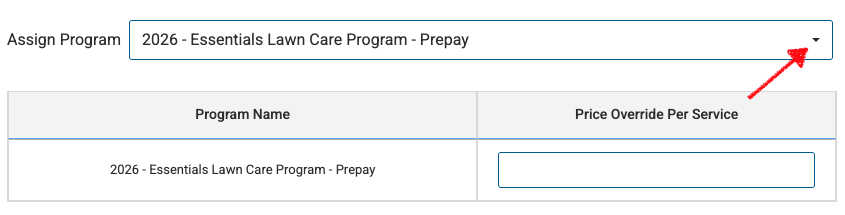
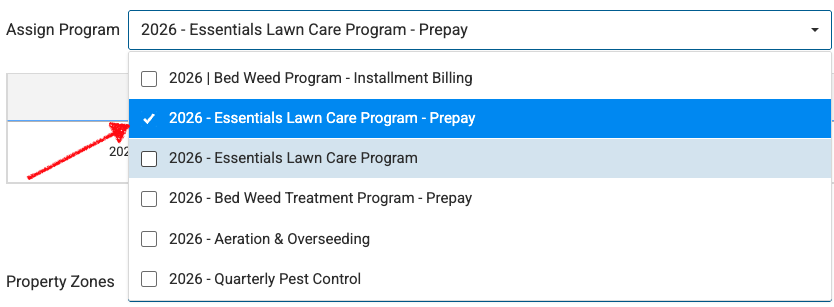
Note: Removing the program automatically deletes all unperformed services linked to that specific program.
Step 3: Add the New Program
- On the same Properties page, click Assign Program dropdown.
- Select the new program from the list.
- Enter the Price Override Per Service, if there is one.
- Click Save at the bottom of the page to save the change.
Key Takeaways
- No Unwanted Charges: As long as no invoices have been generated or services completed, swapping programs on the Properties page will not create accidental charges or orphan line items.
- Automatic Cleanup: You do not need to manually cancel individual service visits removing the original program handles the service removal for you automatically.
- If different price overrides were entered at the estimate level for each service, you would need to remove the program, then create a new estimate for that new program with the correct price overrides and accept that estimate for them.
- If the program is a Prepay program, you would also need to delete the old invoice so that there wouldn't be multiple invoices when there should not be.