
When sending out bulk estimates for a specific service, you may want to ensure customers who have already signed up for that service don't receive duplicate offers.
Since estimates cannot be filtered directly by individual services, the best workaround is to bulk tag existing service customers and exclude that tag when generating your estimates.
Step 1: Create a Custom Tag
- Navigate to the Global Settings page.
- Scroll to the Custom Tags section.
- Create a new tag (e.g., Aeration & Seeding).
Step 2: Bulk Apply the Tag to Existing Customers
- Go to Unscheduled Services.
- Apply a filter to isolate customers who currently have the target service assigned.
- Select all the filtered customers in the list.
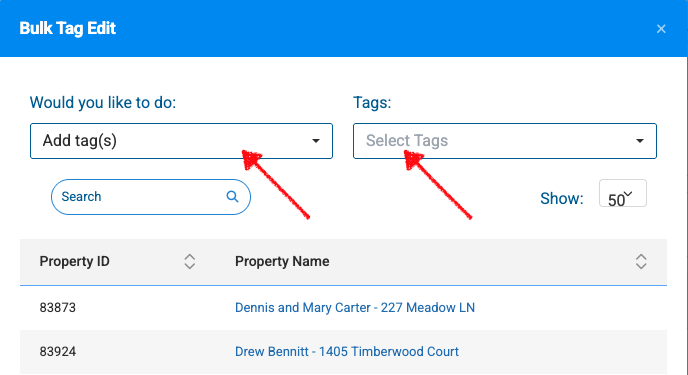
- Click Bulk Apply Tags at the top of the table to open the Bulk Tag Edit window.
- Under "Would you like to do:", choose Add tag(s).
- Under "Tags:", select the custom tag you created in Step 1.
- Click Save.
Step 3: Exclude Tagged Properties When Creating Estimates
- Begin creating your estimates.
- In the filter menu, locate the Exclude Properties by Tag(s) filter.
- Select the custom tag you applied to your existing service customers.
- Generate your estimates.
All properties with the applied tag will automatically be excluded from the recipient list.
Once a tag applied, this tag can also be used to filter the Marketing / Customer Data Report.