
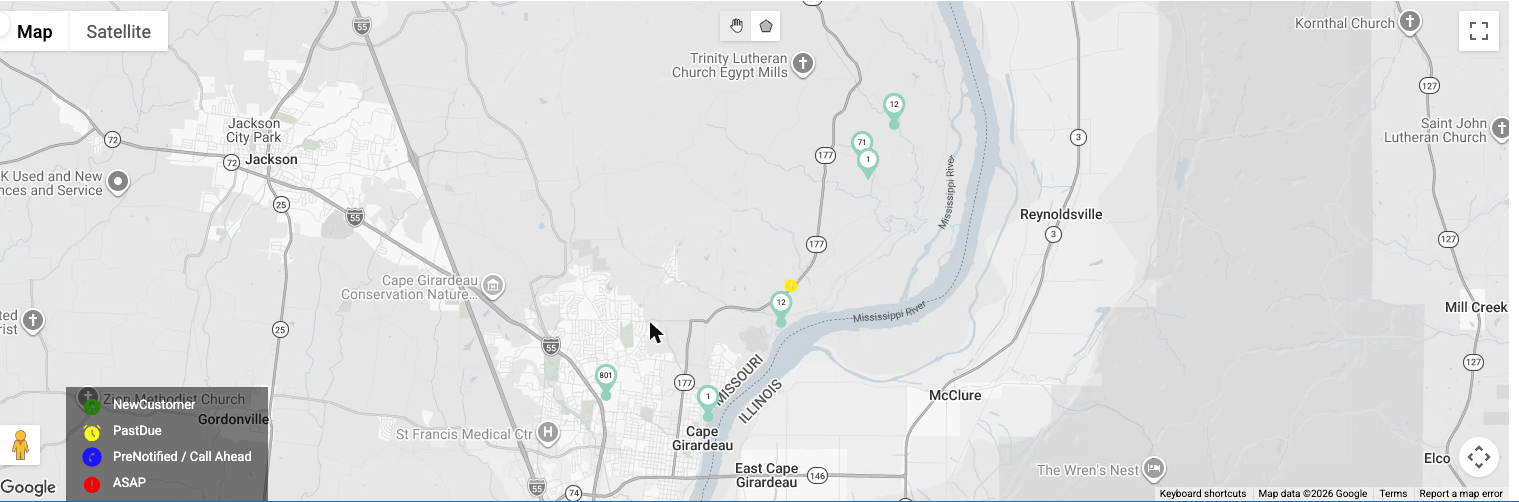
New map improvements are rolling out. Selected pins are now easier to see, hovering over a pin shows a property card, the map is greyscale so your pins stand out, and the polygon tool is easier to use. These are rolling out to accounts gradually. If your map still looks the same, you’ll see them soon.
Using the Map View
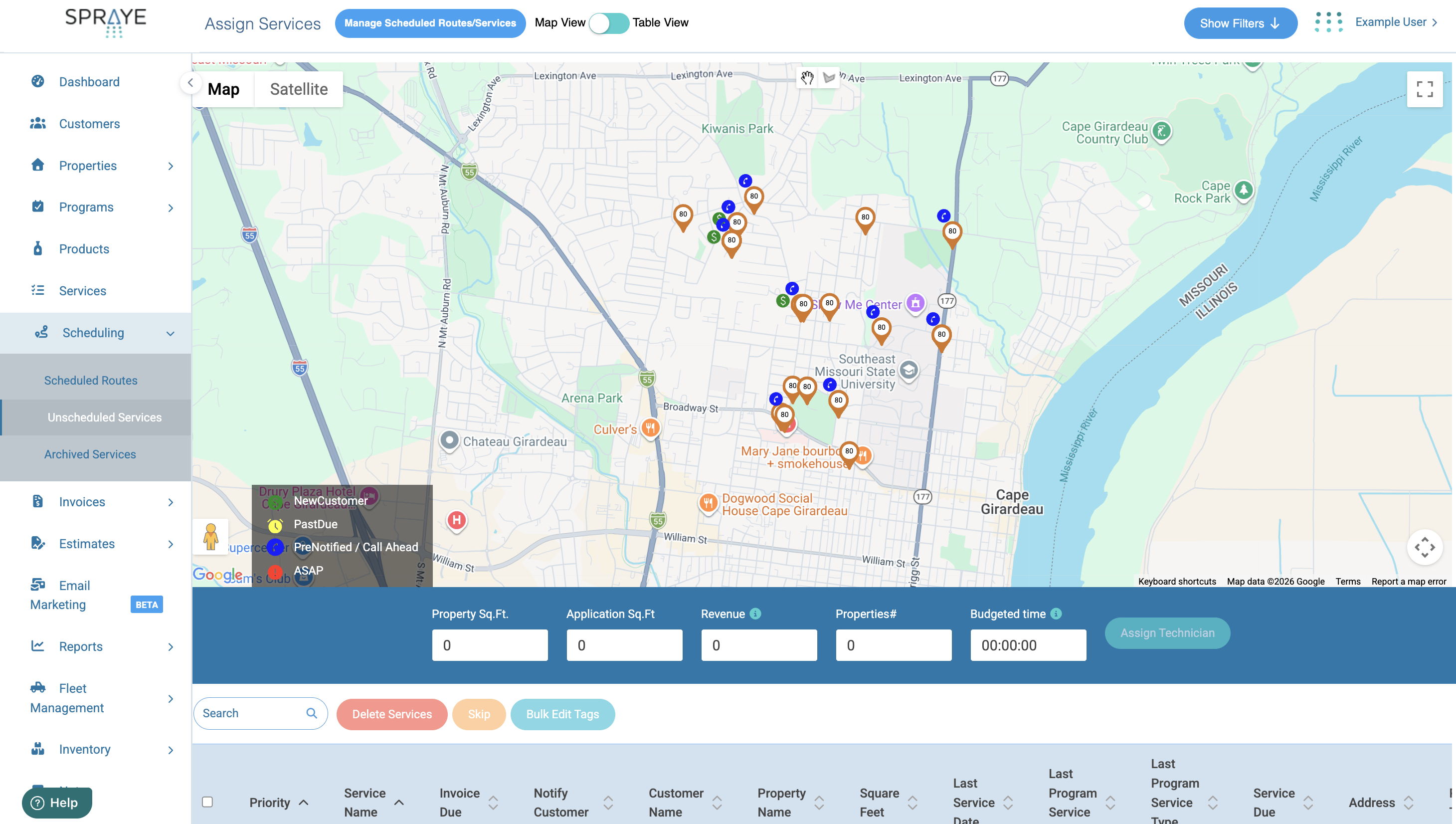
On the Unscheduled Services screen, there is a toggle at the top right for "Map View" that will allow you to view your properties on a map while scheduling, instead of just the table view.
Note You may also set the map view as your default view if you would like by going to Global Settings page under DEFAULT ASSIGN SERVICES VIEW.
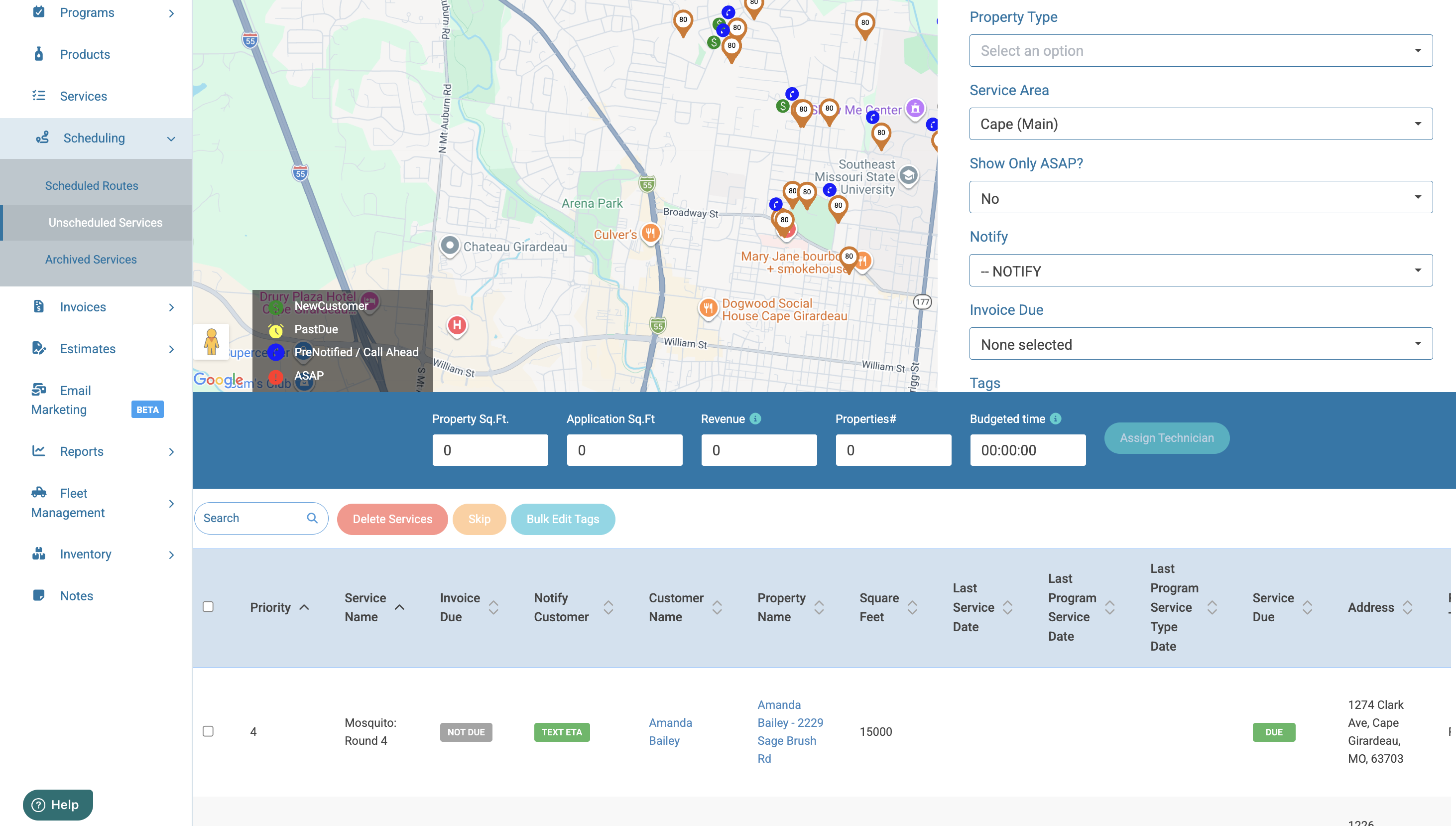
The "map view" screen is a screen that displays both the map and the properties list at the same time (map on top and properties list on the bottom). As you filter the list of available work ("unscheduled services"), the map will update to display only those properties as you click the "Update Map" button at the bottom of the filters section. Also, you can zoom in or out on the map to zero in on specific areas, and the table list on the right will then display only the properties that are visible on the map. Follow the detailed instructions below to use this feature.
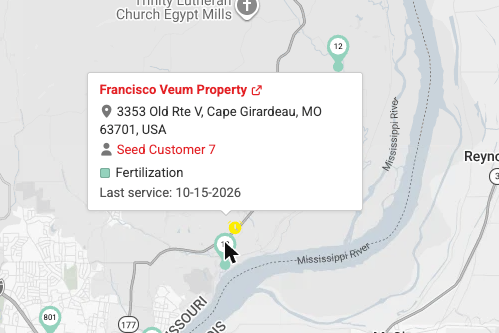
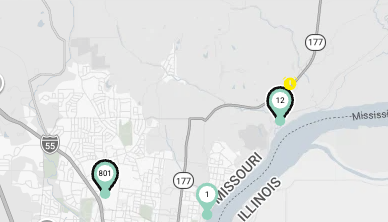
The map’s background is greyscale, so your coloured service pins stand out from roads, parks and water.
How to Schedule Services
Step 1: Navigate to the map view screen: https://dashboard.spraye.io/admin/assignJobsMap
Step 2: Enter your filter criteria in the filter section on the right side of the map to show your desired services
You can filter the list by Property Type, call-ahead/notification status, services, service area, tags, and more.
Step 3: Once you have finished entering your filters, then click the red "Update " button at the bottom of the filter section.
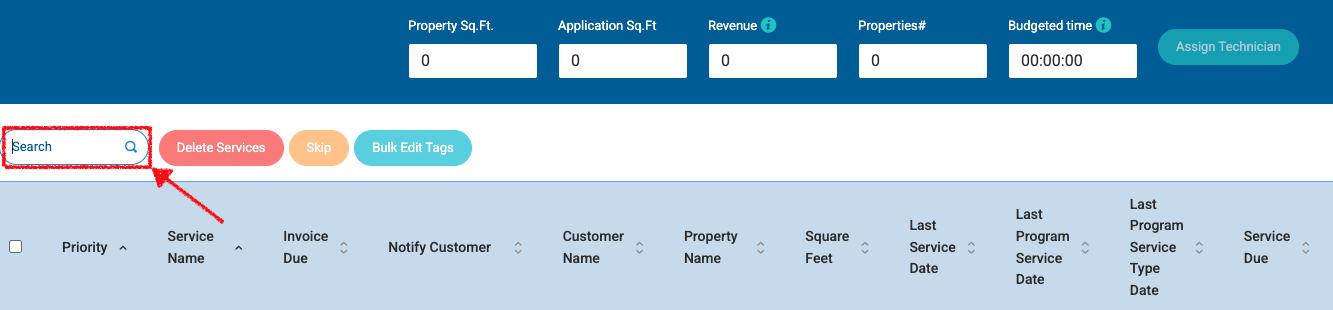
Additionally the Search box at the top table can be used to further filter the data. You could filter for all the services in a particular City or Zip Code using this option.
Note
The property list will filter properties as you zoom in/out/move the map and use the filters
Only properties visible on the map will show in the property list.
You are able to search/filter/sort by all other currently available fields (Plus zip code)
Map will only show properties that are still visible in the filtered table
You are able to select all visible or choose multiple properties (with checkboxes) just like on the Unsch Services table view.
When you select a property, its pin gets a thick dark outline and moves on top of nearby pins. Clicking a pin only selects or deselects that property’s services.
Property card: rest your mouse on a pin for half a second to see a card with the property name and address, the customer, the services on that property (with their colour, and “On hold” where it applies), the last service date, and how many of its services you’ve selected. Click the property name or the customer name on the card to open their profile in a new tab. Move your mouse off the pin and card to close it.
On a tablet or phone: tap a pin to select it and show its card. Tap anywhere else to close the card.
How to Choose Properties using Polygon(s) and Clicking on Markers
Step 1: Follow instruction above to enter filter criteria and zoom into the section of the map you would like to schedule.
Step 2: Click the Polygon icon at the top of the map.
Step 3: Click on the map to drop the points of your polygon around the properties you want. You can drop a point anywhere, including directly on a pin. Close the polygon by clicking your first point again (or double-click). The properties inside are selected, and the map switches back to the hand tool so you can move the map.
Step 4: To add more properties, click individual pins, or click the Polygon icon again to draw another polygon.
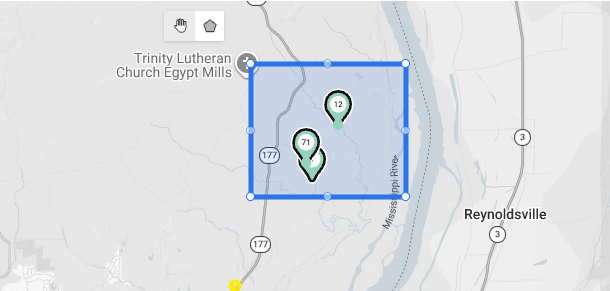
Step 5: Assign services to your desired technician by clicking the "Assign Technician" button at the bottom of the map section.
Note: If you draw a polygon on the map, but want to delete it or start over, you can use the "Delete" button on your keyboard to delete it while it's selected. You can also edit the polygon but selecting it and dragging the end points to the desired position.
Understanding the Map Markers

Past Due (for services): These services are past the ideal scheduling window for completion

New Customer: These are new sales that have not received a service

Pre-Notified/Call Aheads: These customers will receive a pre-service notification reminder and/or require a phone call ahead of service.

ASAP: Indicates a service that has been marked as "ASAP" to be completed first.
Service Types: Each service offered by your company can be categorized into "Service Types" for easier reporting and scheduling. These can be defined in your Global Settings and you can choose a unique color for each Service Type that will then determine the color of the markers for each service on the scheduling map.
# of Days Since Last Service: The number that appears in the center of the map markers represents the number of days since that customer last had a service of that same service type. If there has never been a service of that type, then it will display the number of days since that specific program was assigned.

Multiple Service Marker: A property with multiple filtered services (i.e. Grub Control & Round 3) will show a small circle below the main marker. This circle will indicate the # of additional services at this property by the # of rings you see inside the circle. Additionally, the color of the circle or rings indicates the service type of this additional service.